Apply the View, Snapshot, Group, and Filter Options on a Budget View
Objective
To apply the view, snapshot, group, and filter options on a budget view and how to export a budget view to CSV or PDF.
Background
The Budget tool lets you create flexible, budget views that you can apply across multiple projects. It also provides you with a variety of filtering and grouping options for viewing your budget data. You'll also discover additional options for viewing budget data in full-screen mode, clicking hyperlinks to drill-down into your budget's detail, and the ability to export your budget view data to a Comma Separated Values (CSV) or Portable Document Format (PDF) file.
Things to Consider
- Required User Permissions:
- 'Read Only' level permissions or higher on the project's Budget tool.
- 'Read Only' level permissions or higher on the project's Budget tool.
- Additional Information:
- The 'Sub Job' filter always appears in the Group menu, even if sub jobs are disabled in Procore. To enable sub jobs, see Enable Sub Jobs for WBS.
- The 'Division' option in the Group and Filter menu that corresponded to the CSI MasterFormat in Procore's legacy experience is now named 'Cost Code Tier 1'. Each Cost Code Tier menu option corresponds to a tier in your company's or project's 'Cost Code' segment, which is a tiered segment in Procore's Work Breakdown Structure.
Prerequisites
Steps
- Apply a Budget View to Your Project
- View a Budget Snapshot
- Apply Group Options to Organize Your Data
- Add Filters to Narrow Your Data
- Export a Budget to CSV or PDF
- Additional Options
Apply a Budget View to Your Budget
- Navigate to the project's Budget tool.
- Select a budget view from the View list. For a view to appear in this list, your Procore Administrator must complete the steps to Assign a Budget View to a Project.

Notes
- Procore provides company accounts with a number of standard views that can be used.
- Your company's Procore Administrator can also create new views and customize existing ones using the Company Admin tool. For instructions, see Set up a New Budget View.
View a Budget Snapshot
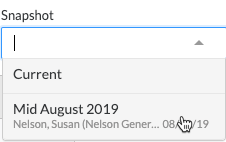
Select a budget snapshot from the Snapshot list.
Note: For selections other than 'Current' to appear, you must first add one or more snapshots for the selected budget view. See Create a Budget Snapshot.
Apply Group Options to Organize Your Data
You can apply the available grouping options to organize your data.
Tip
What do you need to know about the Add Group menu options?
- You can apply one or more groups to your data.
- To remove any or all filters, click the x next to the selected menu option.
- To change the sort order of an applied filter, grab the selection by the menu więcej (≡), and use a drag-and-drop operation to move it to the desired sort position.
- To reset the group filter to the default setting for the budget view (such as Sub Job, Division, and Cost Code), click Reset.
- The 'Sub Job' filter always appears in the Group menu, even if sub jobs are disabled in Procore. To enable sub jobs, see Enable Sub Jobs for WBS.
Add Group Menu Options
Below are the options in the Add Group menu.
| Option | Description | To learn more... | |
|---|---|---|---|
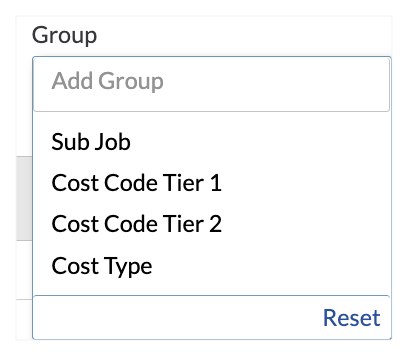 |
Sub Job | Select this option to filter data by the sub job(s) that you select. This option is always visible in the menu, whether or not the sub jobs feature has been enabled on the project. | |
| Cost Code Tier 1 This option was previously named 'Division'. See Where is the 'Division' in the 'Cost Code' segment in Procore's WBS? |
Select this option to filter data by the cost code tier that you select. Each cost code tier corresponds to a tier in the 'Cost Code' segment, which is a tiered segment in Procore's WBS. | ||
| Cost Code Tier 2 This option was previously named 'Cost Code' See What is the difference between a flat and tiered segment in Procore's WBS? |
Select this option to filter data by the cost codes that you select. Each numbered cost code tier corresponds to a tier in the 'Cost Code' segment, which is a tiered segment in Procore's WBS. If you have additional tiers in your 'Cost Code' segment, they will display as Cost Code Tier 3, Cost Code Tier 4, and so on. |
||
| Cost Type | Filters data by the selected segment items from the 'Cost Type' segment. |
Add Filters to Narrow Your Data
You can add filters to narrow the data in a budget view.
Add Filter Menu Options
Below are the options in the Add Filters menu.
| Option | Description | To learn more, see... | |
|---|---|---|---|
 |
Sub Job | Select this option to filter data by the sub job(s) that you select. This option is always visible, whether or you not have enabled sub jobs for WBS. | |
| Cost Code Tier 1 This option was previously named 'Division'. See Where is the 'Division' in the 'Cost Code' segment in Procore's WBS? |
Select this option to filter data by the cost code segment item(s) that you select. Each numbered tier in the menu corresponds to a tier in the 'Cost Code' segment, which is a tiered segment in Procore's WBS. | ||
| Cost Code Tier 2 This option was previously named 'Cost Code' See What is the difference between a flat and tiered segment in Procore's WBS? |
Select this option to filter data by the cost code segment item(s) that you select. Each numbered tier in the menu corresponds to a tier in the 'Cost Code' segment, which is a tiered segment in Procore's WBS. | ||
| Cost Type | Select this option to filter data by cost types. | ||
| Forecast Start Date | Select this option to filter the list by forecasted monitored resources using a start date that you select from the calendar control. | ||
| Actuals by Date | Select this filter option to show only those budget line items that fall between the date range you specify. Depending on the source and calculated columns present in your project's budget view, it helps to understand how the 'Actuals By Date' filter works with your budget view. | ||
| Budget Row Type | Select this option and place a mark next to the Budgeted and/or Non-Budgeted row types to apply this filter. | Add a Partial Budget Line Item |
Export a Budget to CSV or PDF
Click Export > CSV or Export > PDF to open a CSV or PDF version of the budget in a separate browser window. The CSV will show all available rows and columns in the budget view. Any groups or filters applied to the view will be applied only to the PDF file.
Additional Options
You also have these options:
- Full screen
Click this button to view the budget in your browser window in full screen mode. - Arrows
Click the arrows in the table to expand and collapse group summaries of your data. - Tool tips
Hover over a column's title to view details that show how the value in a column is calculated or to learn the tool source and filters for that column,. - Drill-downs
Click any budget value displayed in BLUE font to open a window showing detailed information about that value.